Interface·terminal · desktop·MIT
filetree
Sidebar file tree with git status that lights up what Claude reads, edits and commits.
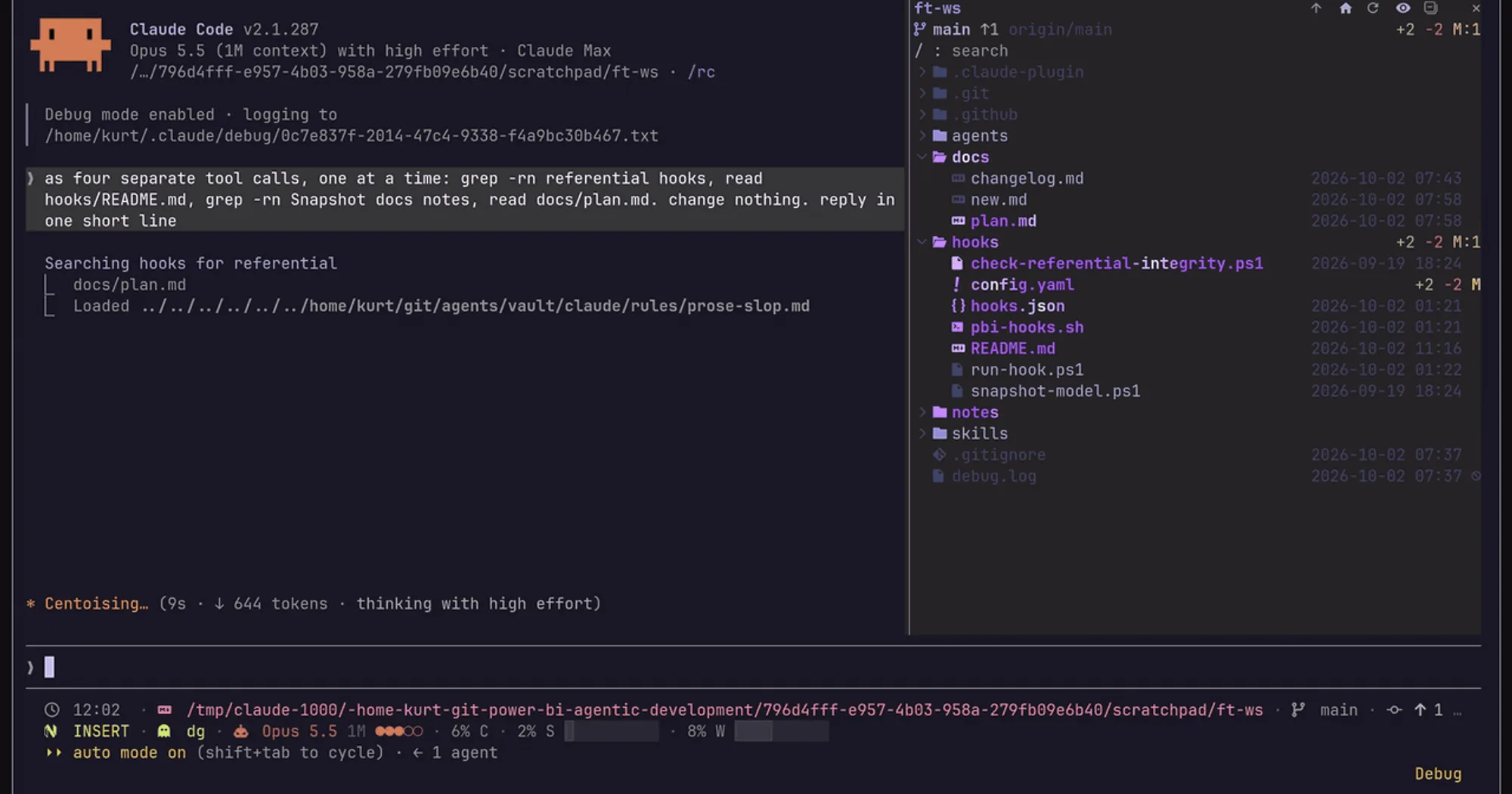
filetree puts an IDE-style tree of your working directory in the right sidebar of Claude Code. Files take the color of their git status, and the ones Claude reads, edits or commits shimmer as it touches them, so you see where Claude is working without reading every tool call. The plugin installs as filetree; claude-code-filetree is the name of the repository.
What it does
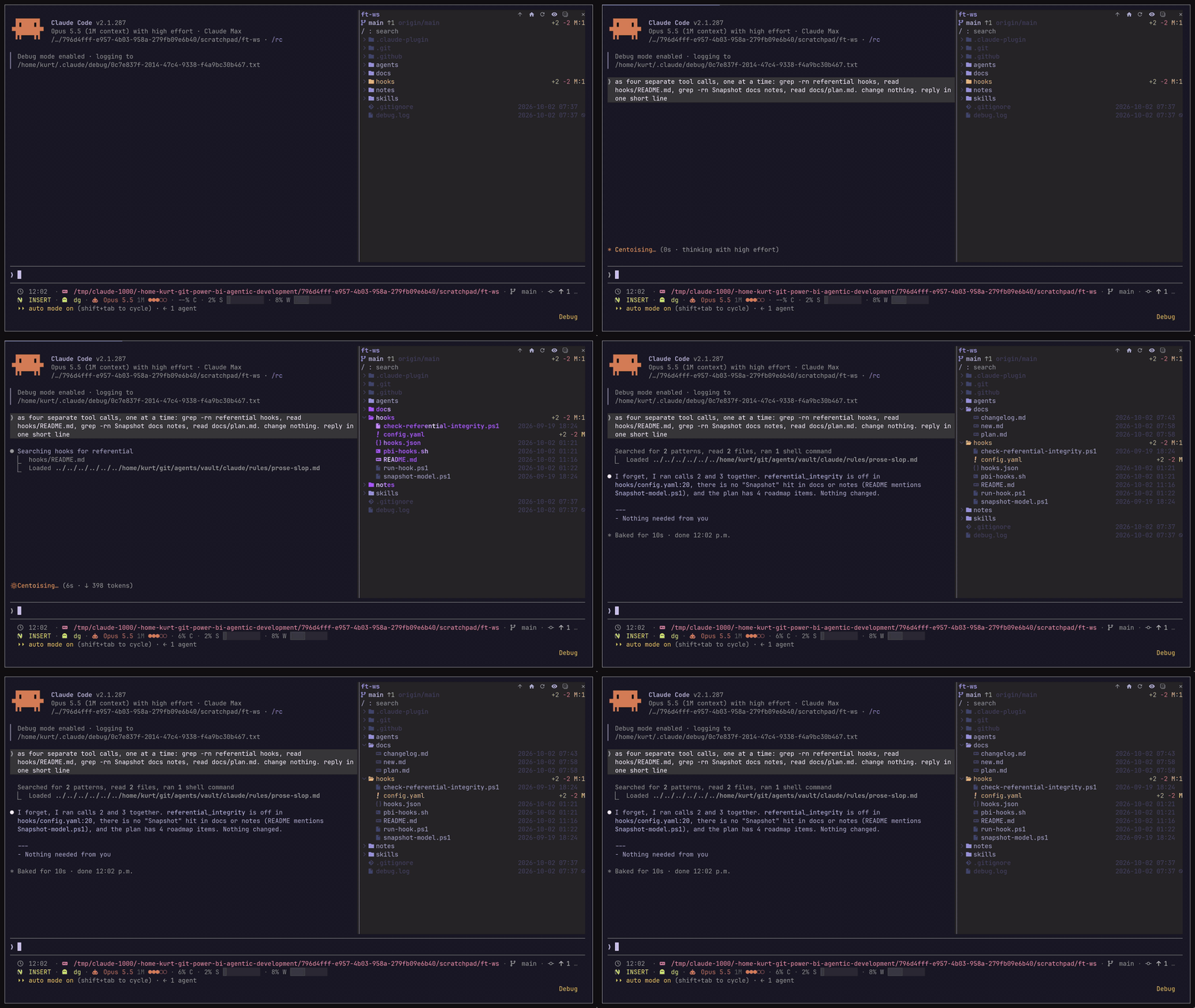
- Claude’s activity. Files Claude reads or searches shimmer purple, whether through the Read tool or Bash readers such as
rg,grep,findandcat. Files it writes shimmer orange, and files it stages or commits shimmer green. Collapsed folders open to show the file, the tree scrolls to it, and the shimmer fades within three seconds. - Git status. Files and folders are colored by status and carry a letter badge. Deleted files are struck through and ignored ones greyed out. Modified files show lines added and removed against
HEAD, folders show counts of new, modified and deleted files (?:N M:N D:N), and unchanged files show their modification time. The header row has the branch, its upstream, commits ahead and behind, and the totals, or “clean”. - Git and GitHub operations. When Claude runs
gitorgh(commit, push, pull, checkout, merge, rebase,gh pr createand more), the footer shows the operation while it runs and then its result: the short hash after a commit, or “commit failed”. - Search. The box at the top filters the tree, including folders you have not opened yet. Enter jumps to the first match.
- Selection as context. Click a file and your prompts carry its path, so “what changed in this?” means that file. An
@pathmention in a prompt reveals that file in the tree. - Mouse and keys. A click selects a file or opens a folder. A double-click opens a file in its default app or makes a folder the new root. Right-click copies the relative path, Shift+right-click the absolute one. Arrow keys or
hjklmove, Enter and Space open. Header buttons go up a folder, return to the cwd, refresh, toggle dotfiles, collapse everything and clear the selection. - Follows the cwd. The tree moves with the session’s working directory.
/filetree <path>pins another folder instead. - Resizable. Drag the pane edge, or bind
pane:growandpane:shrinkinkeybindings.json.
Install
Needs Claude Code 2.1.287 or later, plus the fullscreen layout (/tui fullscreen) and a terminal at least 110 columns wide. Git status needs a git repository; without one the tree still works. The author tests it on Linux, macOS and Windows.
claude plugin marketplace add data-goblin/claude-code-filetree
claude plugin install filetree@claude-code-filetree
In the fullscreen layout the pane opens in the sidebar when a session starts. /filetree opens it on demand, and tells you when the layout or the width falls short.
Three settings live in /config under filetree:
- Claude activity: what shimmers.
reads and writes(default),writes,readsornone. Git colors and the footer always show. - Follow Claude:
on(default) scrolls to what Claude touches.offleaves the view where you put it, and files still light up. - Glyphs:
auto(default),nerdorplain.autouses Nerd Font icons when one is installed and your terminal started after it was, and plain Unicode in the desktop app. On Windows the code always picks plain inauto, so choosenerdif your terminal has a Nerd Font.
How it works
The mod watches Claude’s tool calls through tool.call and reads each one after it runs. It never changes or blocks a call.
- From Read, Edit, Write and NotebookEdit it takes the file path.
- From Bash it reads the command and its output. It parses the command for
gitandghsubcommands, which drive the footer, and for reader commands (rg,grep,find,cat,head,sed,jqand similar) to find the paths they read. Forrg,grep,findandfdit also takes paths from the first 400 lines of output. - After a Bash command that is not read-only, it looks for files modified since the command started: with
findon Linux and macOS (on macOS through a marker file in$TMPDIRthat it deletes afterwards), and by checking the files git reports as changed on Windows.
The git commands it runs itself are local and read-only, with --no-optional-locks so they never take the index lock: rev-parse, status --porcelain, diff HEAD --numstat, ls-files, and diff-tree or diff --cached to find what was committed or staged. They are scoped to the tree’s root. Outside a repo, search lists files with find. The other processes are uname -s to tell macOS from Linux, an fc-list and ps check for a Nerd Font (skipped on Windows and over SSH), herdr --version inside herdr, and open, gio or xdg-open, or PowerShell’s Invoke-Item when you open a file. It never runs gh.
prompt.submit adds one line of context to every prompt while a file is selected: its path, with a note that “this” or “it” probably means that file. That line is the mod’s only token cost, and the clear-selection button in the header stops it. The same hook looks for @path mentions and, like prompt.attachment, for notices of finished background tasks, so a git command Claude ran in the background still gets its result in the footer. Attachments pass through unchanged.
classic.SessionStart adds the repo’s .git/index and .git/HEAD to the watched paths, so a commit or checkout made anywhere, your own shell included, refreshes the tree through classic.FileChanged. classic.CwdChanged moves the tree to the new working directory.
The tree, the theme and the last six git operations live in the plugin’s state. If you use Omarchy, the colors come from its current theme file, ~/.local/state/omarchy/current/theme/colors.toml. The mod makes no network calls: ahead and behind counts come from your last fetch.
Limitations
- It only shows in the fullscreen layout, in a terminal 110 columns or wider. In the default layout the pane closes itself.
- Bash reads are recognized only for the reader commands above, so a script that reads files lights nothing up. On Windows, Bash writes are found only among the files git reports as changed, or outside a repo in folders open in the tree.
- Inside a repo, search skips ignored files. Outside a repo it goes six folders deep.
- In herdr, clicking rows needs herdr 0.9.1 or later. Older versions ignore clicks on rows and everything else keeps working.
- The code also draws the pane in the desktop app, with plain icons. The author notes that mods do not load in WSL sessions of the desktop app.
More mods
The whole directory →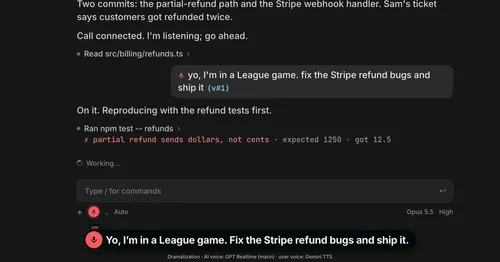
Better Call GPT
A Call button above the prompt: talk to Claude Code by voice while it works.
cc-changelog
The unofficial Claude Code changelog in a pane, plus fifteen tools the model can call.
cc-crayon
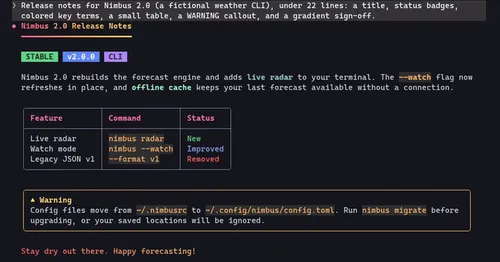
Every reply redrawn in color: themed Markdown plus inline tags the model can write.
cc-image-view
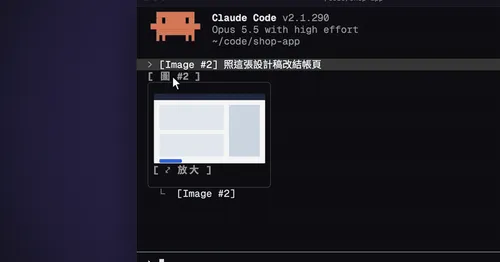
Thumbnails of pasted images above the prompt and under sent prompts, with a zoom pane.